Version 10.1.1 (released October 19, 2026)
- Improved: The on-screen keyboard now appears automatically in numeric input fields (input type="number") in Google Chrome, Microsoft Edge and other Chromium-based browsers.
- Fixed: On Windows 11 22H2 and later, the Windows touch keyboard could still pop up automatically over the on-screen keyboard on tablets and touch screens without a hardware keyboard attached.
- Fixed: The floating window of the on-screen keyboard now remembers the position it was locked at after a restart.
- Fixed: On a monitor with a different display scaling, the on-screen keyboard with a locked size showed misplaced keys, and the keyboard and the floating window changed their size after a restart.
- Some other bugfixes and improvements.
Version 10.1 (released October 5, 2026)
- Changed: The calculation of the font size for characters in the corners of the on-screen keyboard keys has been changed.
- Fixed: With "Type characters when keys are released" on and "Enable key repeat" off, the on-screen Win key is now sent together with the next key instead of being held down, so on Windows 11 the next click no longer opens Click to Do.
- Fixed: At high display scaling, the last Text Suggestions word disappeared when the mouse moved over it.
- Fixed: On touchscreens the on-screen keyboard now types characters as soon as a key is touched instead of when the finger is lifted, and quick repeated taps and holding Delete or Backspace work again.
- Fixed: In the "Keyboard Shortcuts Settings" window, selecting Win, Ctrl, Shift, Alt or Fn on the keyboard again updates the keys to show the icons of the actions assigned to that combination.
- Fixed: Keyboard shortcuts files (.cka) saved by version 9 or earlier with some regional settings now open instead of showing the "No mapping for the Unicode character exists in the target multi-byte code page" error.
- Fixed: The hidden helper process no longer stays running after the program is closed, and the installer now closes any leftover helper processes before updating or uninstalling.
- Fixed: Files saved in ANSI encoding by version 9 or by a text editor no longer cause the "No mapping for the Unicode character exists in the target multi-byte code page" error.
- Fixed: The program now asks for administrator rights for changes that apply to all users instead of silently skipping them.
Version 10.0 (released October 1, 2026)
- New: The interface has been redesigned in the Windows 11 style, with a light or dark look that follows the colors of the on-screen keyboard theme. Interface icons are now monochrome vector graphics, and the interface font is Segoe UI Variable (Segoe UI on Windows 10 and earlier).
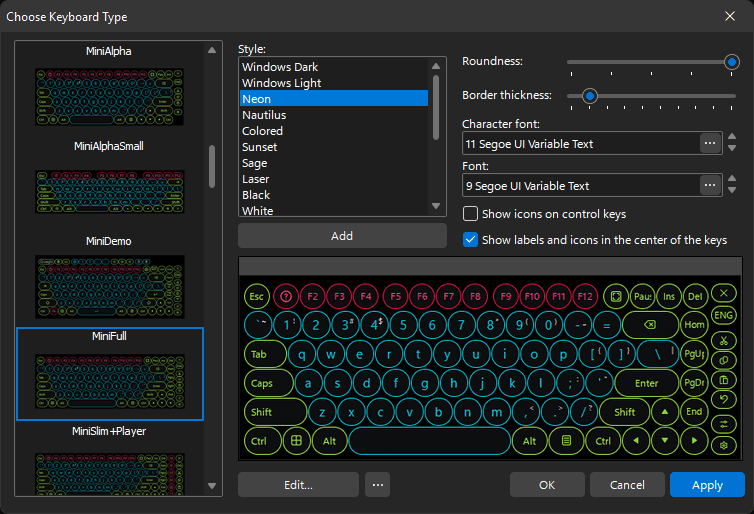
- Improved: The "Windows Dark" and "Windows Light" themes have been retuned to match the look of Windows 11, and the "Mac" theme has been redesigned in the flat style of the Apple Magic Keyboard.
- New: Nine keyboard themes: Neon, Nautilus, Sage, Laser, Contrast, White, Sunset, Retro and Platinum.
- Removed: The outdated keyboard themes Standard, Standard 2, Blue, Dark, Aqua, Vista, Golden, Office Blue, Office Silver, Office Black and System. "Windows Dark" now heads the list and is the default. If your keyboard still uses a retired theme, the theme is kept as a custom color set with the same name and colors; the only exception is "System", which is replaced by "Windows Light".
- Changed: The "Rounded corners" checkbox has been replaced by a "Roundness" slider that runs from square keys to fully round ones. Your previous setting is carried over: rounded keys stay rounded and square keys stay square until you move the slider.
- New: A "Border thickness" slider (0 to 9) for on-screen keyboard keys. The border is drawn inside the key, so the keys keep their size.
- Changed: Gradient key fills are gone: the on-screen keyboard is drawn flat throughout, and the "Drawing style:" setting has been removed.
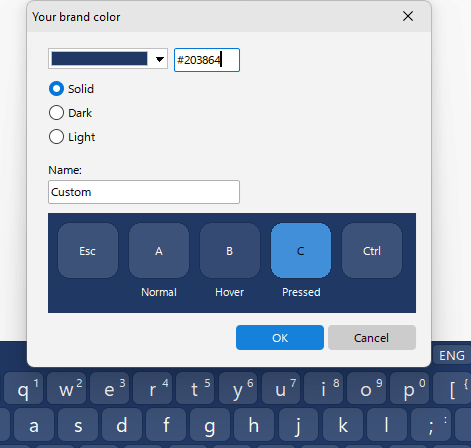
- New: The "Your brand color" window, which builds a complete keyboard theme from a single color picked from a palette or typed in as a hex value. Choose the "Solid", "Dark" or "Light" variant and see the result at once on a five-key sample and on the keyboard itself.
- Changed: The input language key on the on-screen keyboard now shows the language code (ENG, DEU) or the input method icon instead of a flag. To bring the language flag back on that key, tick "Show the language flag" in the settings of the input language action.
- New: On-screen keyboard keys can now have SVG icons. Each icon is stored inside the keyboard file itself, so a keyboard is still a single file with no separate image files. A set of 102 ready-made icons is included.
- New: The on-screen keyboard can now have extra pages in addition to the base layout: click "Pages..." in the keyboard editor, add a page, then put a "Page switch" key on the keyboard and point it at the page it should open. A page can hold text keys, symbols or an extra block such as a numeric keypad. Text keys on a page always type what they show, whatever the input language, while the base layout still follows the input language as before.
- New: The "Pages" window has a button that adds the "&123" template: two symbol pages, "1/2" and "2/2", in the style of the Windows 11 touch keyboard. They follow the geometry of the base layout - the number row becomes F1..F12 when the layout has no row of function keys, the letter rows become text keys, the left Shift becomes the page switch, and the "abc" key returns to the letters.
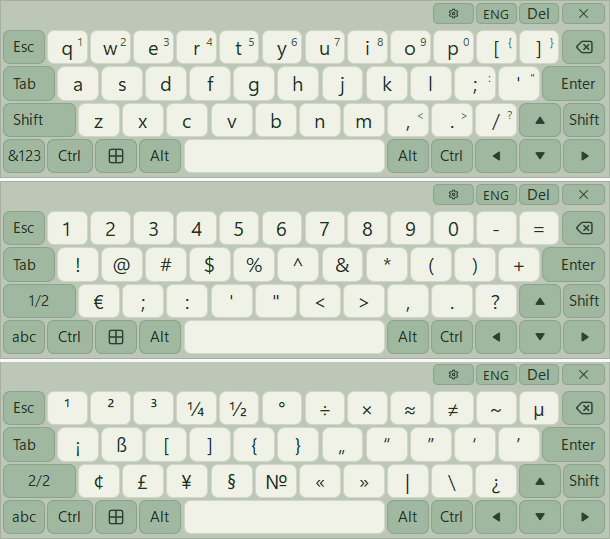
- New: The Mini, TouchScreen, TouchScreenFull, TouchScreenKeyboard and TouchScreenWin8 keyboards now come with "&123" symbol pages.
- Changed: The separate Touch Screen Keyboard edition has been discontinued. Hot Virtual Keyboard includes the same keyboard under the name "TouchScreenKeyboard".
- Changed: Several on-screen keyboards have been renamed: "UltraPhone1440" to "UltraPhone", "TouchGame1" to "TouchGame", "Tight1" to "Tight", "StandardAlt3" to "StandardAlt", "Standard3" to "StandardShort" and "TouchScreenLetters" to "TouchScreenKeyboard". If one of them was selected, the selection switches to the new name automatically.
- Changed: These keyboards are no longer offered: SkinWin7, TouchGame2, TouchGame3, SkinFlat, SkinMulticolor, SkinWhite, UMPC_Numx2000, UMPCx2000, KioskSkin, SkinRound1, SkinRound2, SkinRound4 and Tight2. They stay on disk, and "Show Outdated Keyboards" in the "Choose Keyboard Type" window brings them back.
- Removed: The keyboards Circles, CirclesBig, FullScreen1024, Mini2, StandardBig and StandardBigAlpha. The Mini2 layout is now supplied as TabletPC and replaces the previous TabletPC layout.
- Improved: The Mini keyboard has been completely redesigned.
- Improved: Keys with complex shapes, such as Enter and the angled keys of game layouts, are now drawn with smooth, anti-aliased edges. On keyboards with a transparent background or a background picture the edges are still drawn without smoothing.
- Changed: Selected rows and items now use one fixed accent blue throughout the program, which suits the new themes better.
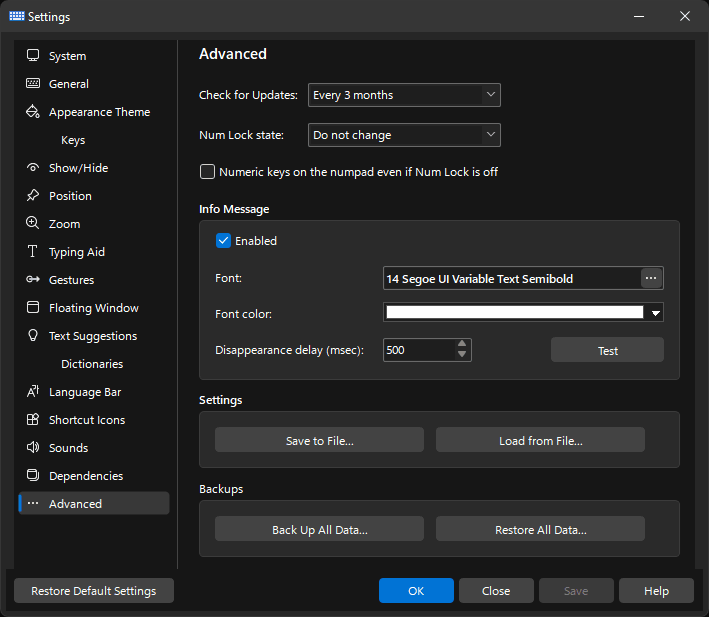
- New: Full data backup and restore is now built in. "Back Up All Data..." in the "Settings" window packs the settings together with the data files - keyboards including your own, key icons, sounds, dictionaries, shortcut files and scripts - into a single signed .hvkpack file, and "Restore All Data..." restores them from it. The two commands replace the separate hvkBackup and hvkRestore utilities. The same job can be scripted with the /SAVEPROFILE and /APPLYPROFILE command-line switches. The file is verified before it is applied. Restoring is not available in the trial version.
- Fixed: Working with fullscreen (F11) browser windows: with "Docking" or "Moves and sizes the active window" turned on, a fullscreen Chrome window now shrinks to make room for the keyboard instead of being covered by it, and the taskbar no longer covers the keyboard.
- Changed: The separate COptions.exe helper is gone: the program itself carries out the operations that need administrator rights and asks for elevation when necessary.
- Improved: The program now fully supports Unicode: the interface works in any language, and Text Suggestions dictionaries can be Unicode files in any language.
- New: The on-screen keyboard can now have virtual keys that are not tied to any physical key. There are three kinds of virtual key: "Text", "Page switch" and "Action". An action key is identified by its name and takes its action from the shared list of actions.
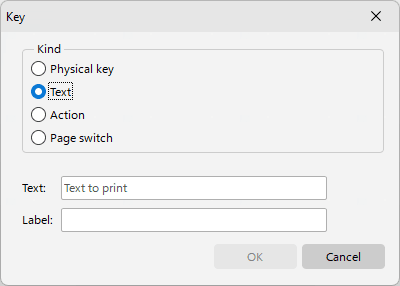
- Changed: The keyboards supplied with the program have been rebuilt with virtual keys, and the old invisible key codes are no longer used. Actions you assigned to those codes are carried over to the matching action keys automatically.
- Improved: The keyboard editor has been modernized: keys are selected and resized with a selection frame that snaps to neighboring keys and to the standard key size, and "Cut", "Copy" and "Paste" replace the old "Clone" command.
- Improved: The "Color / Picture" window has been redesigned: every color has its own drop-down picker in a grid with a column for each key state - "Normal", "Hover" and "Pressed" - and separate columns for "Function keys" and "Control keys". The key picture is chosen there too, separately for regular, function and control keys.
- New: A keyboard can now have two keys with the same code: when you add a key whose code is already in use, the editor offers to create a second copy of the key, for example Enter on the numeric keypad. The copy gets its own shape and appearance, and the right-hand key of the pair is automatically treated as the extended one (for Enter, the key on the numeric keypad); this determines which copy lights up and which scan code is sent.
- New: The "If the keyboard covers the text cursor" list on the "Position" page: "Don't move", "Move the keyboard away from the text cursor" (the previous behavior, still the default), or "Transparency 10%" to "Transparency 90%" so you can see the cursor through the keyboard. The keyboard stays transparent while the cursor is under it and returns to its normal transparency as soon as the cursor is clear of it.
- Improved: Text Suggestions now match letters with and without diacritics: typing a plain letter also finds words with its accented forms, while typing an accented letter narrows the list to words that really contain it. When the dictionaries cannot fill the list, it is topped up from the Windows spell checker (Windows 8 and later), so for a mistyped word you get a correction instead of nothing at all.
- New: The "Keyboard Shortcuts Settings" and "Edit shortcut icons" windows now support Undo and Redo (Ctrl+Z / Ctrl+Y).
- Improved: The program now uses per-monitor DPI awareness: it works correctly on multi-monitor setups where the displays have different scaling, and windows and icons are redrawn at the right size when the scaling changes or a window moves to another monitor.
- Improved: The application icons used for keyboard shortcuts have been completely redrawn as vector images, so they stay sharp at any size. You can add your own PNG files as well - at 16, 24 and 32 pixels, or just one of those sizes.
- Changed: Shortcut icon sets now use the version 10 format with the ".csi" extension, and all bundled sets have been reissued in it. Sets from earlier versions (".cki") still open as before but are never overwritten, so version 9 keeps working with them.
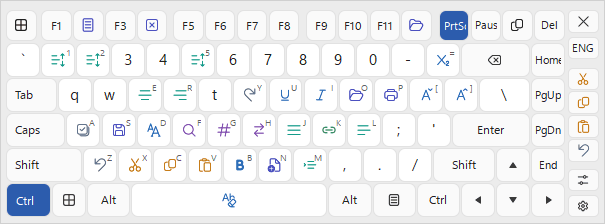
- New: Enter, Tab, Caps Lock and Shift now show an icon instead of their name when the name does not fit the width of the key. With the new "Show icons on control keys" option turned on, the icon is always shown.
- New: The "Show symbols accessible via AltGr" option, which shows the third-level character in the bottom-right corner of each key.
- New: The "Align labels on control keys to the left or right edge" option: the labels and icons of the control keys at the ends of the rows (Tab, Caps Lock, Shift, Ctrl, Enter, Backspace) sit at the outer edge of the keyboard, as on the Windows 11 touch keyboard. After an update from version 9 the option stays off until you turn it on.
- Improved: A key that sends a keyboard shortcut (Ctrl+O, Ctrl+Shift+Tab) instead of its own keystroke now shows the target key large in the center and the modifiers on one small line in the bottom-left corner. The label is drawn in the colors of the key, not on a black square as before.
- Changed: The interface now says "Transparency" and "Transparent" instead of "Opacity" and "Opaque". The sliders run from "0%" on the left to "Transparent" on the right, and every list of percentages gives the transparency. Your saved settings are unchanged.
- New: The "Dependency" window has a new option, "On-Screen Keyboard: Transparency 50%", right after "On-Screen Keyboard: Dock at bottom of screen": the keyboard becomes 50% transparent while the program the dependency is set for is in the foreground, and your usual transparency comes back as soon as you switch to another program.
- Changed: The "Three finger tap on your touchscreen: Show/Hide" checkbox has been replaced by a "To show the keyboard, touch the screen with" list: choose from 3 to 10 fingers, or "(None)" to turn the gesture off. If the old checkbox was ticked, the gesture is carried over as three fingers.
- New: The "Move the keyboard away from the Start menu" option on the "Position" page: while the Start menu is open the keyboard steps aside, and it returns to its place as soon as the menu closes.
- Improved: The "Edit Keyboard Type", "Edit shortcut icons" and "Keyboard Shortcuts Settings" windows no longer put the program on hold: the on-screen keyboard stays available while they are open, your keyboard shortcuts keep working whenever none of these windows is in the foreground, and saved changes appear on the live keyboard at once.
- New: A "Find" box above the list in the "Keyboard Shortcuts Settings" window, which filters the list by key name, shortcut, action description and your own label.
- Changed: The kiosk settings lock is now a machine-wide policy: "AccessDenied" is read first from HKEY_LOCAL_MACHINE\SOFTWARE\Policies\ComfortSoftware\hvk, and only when that value is missing or 0 does the program fall back to the per-user key it used before, so a standard user can no longer unlock a kiosk from their own branch of the registry. The bundled AccessDenied.reg and AccessAllowed.reg now set the policy value and need administrator rights to import, and AccessAllowed.reg also removes the old per-user value.
- Removed: The "Connect/Disconnect from a network" action group and the "Eject/Close CD door" action.
- Improved: Shortcut files now record each action by name as well as by number, so files stay compatible when an action is retired or a new one is added.
- Removed: The "Add to the Windows context menu" option and the Explorer shell extension behind it.
- Improved: Text Suggestions dictionaries are now read in the encoding of their own language, whatever the system code page or the current keyboard layout, so a dictionary written for another language is no longer garbled. Dictionaries saved in UTF-8 are supported as well. The Hebrew and Norwegian dictionaries have received a language tag like all the others, so they are picked reliably for the language you are typing in.
- Improved: The Hebrew dictionary for Text Suggestions has grown from about 4,500 to about 470,000 words, and a new Arabic dictionary of about 39,000 words has been added.
- New: Two options on the "Text Suggestions" page of "Expert Settings", both on by default: "Ignore diacritics when matching Text Suggestions" and "Use the system spell checker for Text Suggestions".
- Fixed: The "Sleep" action on modern laptops: it now puts the computer to sleep the way the Windows power menu does, with instant wake, instead of sending it into hibernation.
- Fixed: At 125% and 150% display scaling, option captions in the "Settings" window and the text on information panels were cut off. Captions now stretch to fit the text and, where there is not enough room, end with "..." and show the full text in a tooltip.
- Fixed: Message and confirmation windows cut off long text. The text now wraps and the window grows to fit it.
- Fixed: Window and panel sizes, including splitter positions, are now saved together with the display scaling, so windows and panels are restored at the correct size on a screen with different scaling.
- Fixed: Two tray menu glitches: pressing a keyboard shortcut that opens a window while the tray menu is open no longer freezes every menu in the program, and the tray menu no longer flickers or reopens itself after repeated right-clicks on a tray icon.
- Fixed: A security and stability problem in the on-screen keyboard components used on the Windows sign-in screen (also fixed in version 9).
- Fixed: A number of memory and resource leaks, so the program holds on to less memory during long sessions.
- Fixed: On computers with no internet access (typically running Windows 7) the installer now installs the complete code signing certificate chain, so Windows can verify the signatures and every component starts.
Version 9.6.2 (released June 4, 2026)
- Improved language detection for text suggestions
- Fixed an issue when switching languages if the list included Japanese, Chinese, or Korean.
- Fixed an issue with text suggestions for the Polish language.
Version 9.6 (released May 19, 2026)
- Improved: The hotkeys file can now be stored on a network folder (for example, OneDrive) and synchronized across devices.
- New: Added the ToggleKeyboard.exe file to the main program folder, which can be pinned to the taskbar for quick access to the on-screen keyboard.
- Improved: The on-screen keyboard now appears in Google Chrome and Microsoft Edge for certain ComboBox input fields (for example, the Google search box).
- Improved: If Data\CommonSettings.ini exists, settings are now saved to this file.
- Improved: If Data\LogonSettings.ini exists, logon keyboard settings are now loaded from this file.
- New: Added the LogonTransparent setting to control logon keyboard transparency.
- New: MoveBottomKB.exe now supports bottom offset in either pixels or percent (for example, MoveBottomKB.exe 250 or MoveBottomKB.exe 10%).
- Improved: The last state of control keys is now restored after using the "Replace key or shortcut" action.
- Improved: The "Disable system touch keyboard and handwriting panel" setting has been refined.
- Improved: Refined UI translations across multiple locales.
- Improved: Added localized help for Spanish, German, French, Portuguese, Italian, Dutch, Chinese, Japanese and Korean.
- Improved: Input language order now follows the order defined in Windows settings (also fixes switching with system language shortcuts).
- Fixed: Corrected automatic assignment of the F11 key when it is available through Fn key.
- Fixed: Corrected key interception from invalid keyboard sources (including Alt+F4 handling).
- Some other bugfixes and improvements.
Version 9.5 (released May 17, 2022)
- New: Scheduled check for updates has been added: Settings > Advanced > Check for Updates.
- New Gestures Ctrl+Key and Alt+Key have been added.
- New expert settings have been added:
- Shift, Ctrl, Alt, or Win key remains pressed if held down for less than 500 milliseconds;
- Additional key border to define the active key;
- Hold down Arrow keys until pressed again;
- Hold down Any key until pressed again.
- Improved: The on-screen keyboard shows characters accessible via Shift if they were added using the Paste Text action.
- Improved: The procedure for determining full-screen windows for calculating the location of the on-screen keyboard has been improved.
- Improved: The list of hidden windows appears as a separate submenu in the popup menu with all actions and in the main context menu.
- Improved: The "Don't move the mouse when touching the on-screen keyboard" expert setting is enabled by default. The setting has been greatly improved.
- Improved: The print dialog automatically appears when you print the action list.
- Fixed: All text templates stopped working if you canceled the processing of a text template with the Esc key.
- Fixed: The logon keyboard appeared in the upper left corner if you set "Don't move" in the "Default position" section.
- Fixed: The issue of the disappearance of the program icon in the system tray has been fixed.
- Lots of other fixes and improvements.
Version 9.4 (released May 28, 2021)
- Improved: The size of the keyboard in the "Edit shortcut icons" window is set to the size of the main on-screen keyboard.
- Improved: Handling of active input languages has been improved.
- Improved: The information message describing the triggered hotkey has been improved.
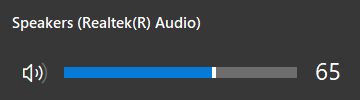
- Improved: The volume information window has been improved. See also: Audio control actions
- Improved: The "Move the on-screen keyboard to a screen border" setting has been replaced with the "Default position" setting. See also: Position settings
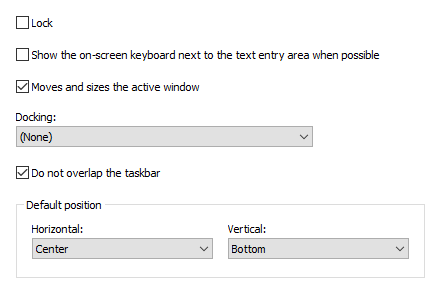
You can change this setting for any keyboard in the "Edit Keyboard Type" window. So your keyboards will have different positions on the screen when you switch between them.
The keyboard position changes even if the Lock setting is set.
- Changed: The two on-screen keyboard settings "Changes the position of the active window" and "Changes the size of the active window" have been merged into one "Moves and sizes the active window" setting. See also: Position settings
- Improved: The on-screen keyboard with the "Moves and sizes the active window" option enabled can now resize maximized windows.
- Improved: The Docking setting for the on-screen keyboard now works correctly for web browsers (Chrome, Firefox, Edge) in kiosk mode and full screen mode.
- Changed: The "Do not overlap the taskbar" setting has been moved from the expert settings to the Position section of the main settings. The taskbar is taken into account when moving the keyboard to the edge of the screen if this setting is enabled.
- Changed: Now the Ctrl-Alt-Del button is not shown by default above the keyboard on the logon screen in Windows 10. You can force this button to be shown using the ShowCAD parameter.
- Improved: New key label templates have been added based on the "Segoe MDL2 Assets" font in the "Edit Keyboard Type" window.
- Now you can use the <INPUT> tag in the Paste Text action. This tag adds the ability to enter text from the keyboard that will be inserted into the text template.
- Changed: The automatic snapping to the edge of the screen when changing the screen resolution has been removed.
- Fixed: An issue with the Japanese keyboard (106/109 key) layout has been fixed.
- Some other bugfixes and improvements.
Version 9.3 (released March 27, 2021)
- New keyboard types: Narrow, NarrowExtra, NarrowFunction.

- New: You can assign the Paste text action with one symbol to Shift+Key hotkey, and this symbol will be visible in the corner of the key.
- A new "The taskbar is taken into account when moving the keyboard to the edge of the screen" expert setting has been added.
- A new Javascript function "ChangeLanguage" has been added. Now you can change the input language in the web browser, using the onscreen keyboard functions.
- New: Persian interface language has been added.
- Improved: The on-screen keyboard typing in Chinese and Japanese has been improved.
- Improved: The on-screen keyboard now appears when DateTime Pickers are focused.
- Improved: The expert "Highlight the keys on the on-screen keyboard when you lift your finger" setting now works for the physical keyboard as well.
- Improved: You can type the © character by holding down the C key. See the Show alternate characters or symbols setting.
- Changed: If multiple monitors are connected and the AccessDenied parameter is set to 2 or 3, then you can move the on-screen keyboard to any monitor.
- Fixed: The search field now remains active when typing with the on-screen keyboard in Microsoft programs: Outlook, Word, Visual Studio, etc.
- Fixed: The appearance of the keyboard settings window when working with multiple monitors has been fixed.
- Some other bugfixes and improvements.
